Export WAV Files From Audacity
- Export WAV Files From Audacity
1. Once you have finished recording, save the Audacity project to the computer using the File -> Save Project menu option
2. To export a WAV file, select File -> Export Audio:
3. If asked to share to audio.com or to export to computer (you might not be asked), please select Export to computer
4. Select the Browse button to choose your export location. (For example: "Recording shared with John Moe" if you have set up a shared folder like this.)
5. Open the export location and select Save to commit the export location.
6. Click Export to export the WAV file to the committed location:
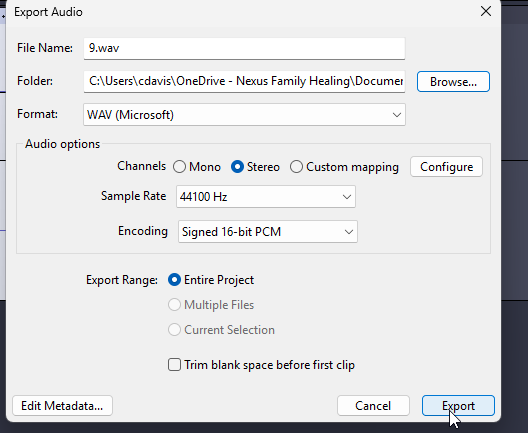
7. The WAV file is quietly exported to the committed location. You can confirm by opening the committed location:
Audio options
Channels
Sets the number of channels for the exported audio file. There are three options
- Mono: single channel
- Stereo: stereo pair with left and right channels
- Custom mapping: use this to export multi-channel (surround sound) files or to make customized assignments between Audacity tracks and the channels in the exported file.
- Selecting this and clicking on the button causes the Advanced Mixing Options dialog to appear. For details please see Advanced Mixing Options.
Sample Rate
Sets the sample rate for the exported file. Default setting is 44100 Hz, which is CD quality.
Encoding
Selects the encoding to be used for the WAV file. Default is Signed 16-bit PCM, which is CD quality
Related Articles
Upload Files to Microsoft Teams
Upload Files to Microsoft Teams Every channel has a Shared or Files tab. You'll find everything that's been shared there. 1. Select Upload > Files or Folder. 2. Choose your files. <br> Sources: Upload and share files (microsoft.com) Estimated ...DNET- Sending/Receiving Files
FROM YOUR NEXUS COMPUTER: Open your web browser and sign into this OneDrive link https://ilgov-my.sharepoint.com/ with your Illinois.gov credentials or select your .gov account Login to the Illinois Portal with your gov username and password (Do not ...Reduce File Size of Microsoft PowerPoints Files
Reduce File Size of Microsoft PowerPoints Files If the file size of your presentation is too large, please try the following tips to make it more manageable: Compress pictures in your presentation Select a picture in your document. The Picture Format ...Set up OneDrive After First Sign-in to a PC
Set up OneDrive After First Sign-in to a PC Sign in to the computer If off campus (not at a Nexus location) with a Nexus PC connect the VPN, steps here: Remote access (VPN) - Connecting to AOVPN on an assigned Nexus PC which itself requires approval ...Set Acrobat Reader as default PDF viewer (PDF files look funny or don't open in Acrobat Reader)
Set Acrobat Reader as default PDF viewer (PDF files look funny or don't open in Acrobat Reader) These steps are for staff who are not licensed for Adobe Acrobat (Pro). If you are licensed for Adobe Acrobat (Pro), you can set it as your default PDF ...