Connect to Wi-Fi Remotely Before First Sign-in to a PC
This article is intended to be used by remote staff who need to connect to their home Wi-Fi before their first sign-in to a PC.
A home Wi-Fi internet connection is required for these steps.
1. Before you attempt to sign-in to the computer, please make sure to connect the computer to your home Wi-Fi.
You will need your home Wi-Fi password handy to this.
2. Turn the computer on and plug it in to power.
3. Once the computer finishes starting, at the sign-in screen, in the lower right-hand corner of the PC screen, you will see a globe or Wi-Fi symbol, click on that:
4. A list of Wi-Fi networks will appear, please select your home Wi-Fi network, make sure the box to Connect automatically is checked, and select Connect.
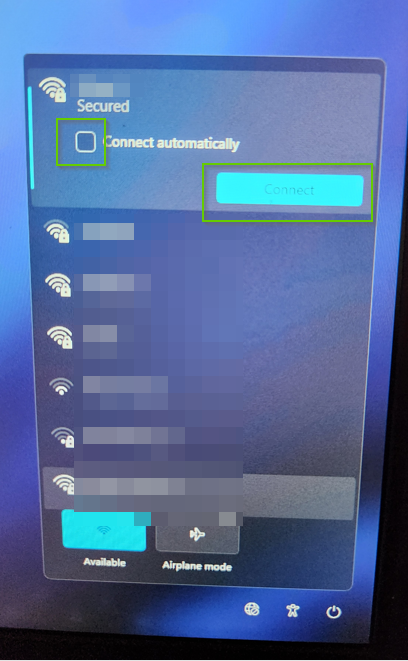
5. When asked to enter the password, please enter password that you use to connect to your Wi-Fi:
6. Once the Wi-Fi connect, please wait at least 5 minutes before trying to sign-in to the computer.
If you are not able to sign-in to the computer after 5 minutes, your computer may still be connecting to the server.
Please leave the computer plugged in, and connected to power, to give it more time to connect to the server.
Please leave the computer plugged in, and connected to power, to give it more time to connect to the server.
Related Articles
Set up OneDrive After First Sign-in to a PC
Set up OneDrive After First Sign-in to a PC Sign in to the computer If off campus (not at a Nexus location) with a Nexus PC connect the VPN, steps here: Remote access (VPN) - Connecting to AOVPN on an assigned Nexus PC which itself requires approval ...Forget a Wi-Fi Network in Windows
Forget a Wi-Fi Network in Windows From the Windows Desktop (main screen), Right click the Start Menu, Select Settings. Click Network & Internet, then click the Wi-Fi ">" arrow to the right of the On slider. Click the Manage known networks ">" arrow. ...Remote access (VPN) - Connect to AOVPN on an assigned Nexus PC
Prerequisites MFA registration must be completed. Smartphone/tablet must be nearby Assigned PC from Nexus. If possible first-time sign in should happen at Nexus office Completed Nexus Electronic Equipment Agreement (will be provided by IT staff) ...Connect to Public Wi-Fi in Windows
Occasionally you may need to use airport or hotel internet. Issues connecting to or using these networks usually stem from an inability to access the login page (known as the “captive portal”) for the networks. Please try using these instructions the ...Use Wi-Fi Calling on a Samsung Galaxy Cell Phone
Use Wi-Fi Calling on a Samsung Galaxy Cell Phone ↗ When turned on, Wi-Fi Calling may improve indoor call quality on a Samsung Galaxy cell phone. Steps Open the Phone app. Tap the 3-dot menu icon then tap Settings. Tap the Wi-Fi Calling switch to turn ...